PreCache NetInjector Documentation Center : PreCache NetInjector Administration
Configuration
|
|
PreCache NetInjector Documentation Center : PreCache NetInjector Administration Configuration |
 |
 |
|
|
|
|
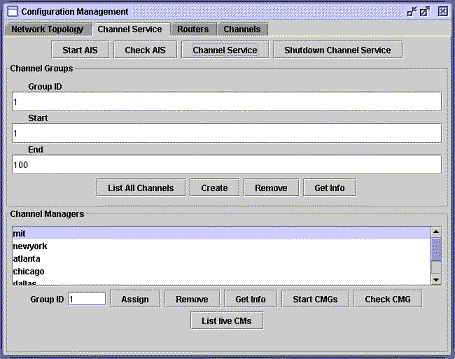
Channel Service — the information base for channels The Channel Services interface allows you to manage the information base of the pipe for data flows within channels. Channels exist as tunnels across the network. Each channel is essentially a tunnel: publishers and subscribers tap into the tunnel whenever they want to tap into the information flow within the channel. Channel Service include Aquila Information Server (AIS) and Channel Manager (CM).
The process of configuring Channel Service consists of:
The Channel Services interface facilitates the tasks of creating and maintaining channel groups for your network. AIS AIS matches routers and users by zip code, so that each channel's notifications flow efficiently through the network. AIS maintains the database of the network topology, including router nodes, zip code information and channel managers. Note: The task of assigning zip codes to routers, and routers to zip codes, is performed within the Routers interface. When you start AIS, NetInjector initializes the network according to your topology. AIS must be running when you start routers or channel managers.
Channel Groups A NetInjector topology is comprised of a set of channels. Each channel is part of the group of channels within a network. Each channel must belong to a group. You may create more than one group for a topology. Channels may not be assigned to multiple groups. Create a channel group Creating a channel group requires that you know how many channels you plan to create, as well as the existence of other groups.
Before building your group, load the topology and start AIS.
Delete a group You can remove a group from the topology.
Caution: Removing a group deletes all of the channels within the group, including all of their subjects and attributes. As these changes are updated automatically, you should exercise caution when removing a group from a live environment. Query channel group properties You can view channel group properties and information without affecting the network.
Channel Manager Each group of channels must have its own Channel Manager; a channel manager can only serve one group. The Channel Manager handles internal communications regarding subjects and attributes between the network and the channel. Create a Channel Manager After creating a group, assign the role of Channel Manager to one of your routers or servers. Note: You can start the channel management service only after starting AIS.
Modify a Channel Manager You can also check the status of the Channel Managers for your topology, reassign the task, or remove the assignment.
To reassign Channel Manager to a different host:
|
|